Network Visualization, Analysis and Design GUI
This section explains the main user interface of ENP.
If you are new to the product, the key idea is simple: ENP has one visual workspace and one table-based workspace. You will move between them constantly.
ENP has two main windows, shown below:
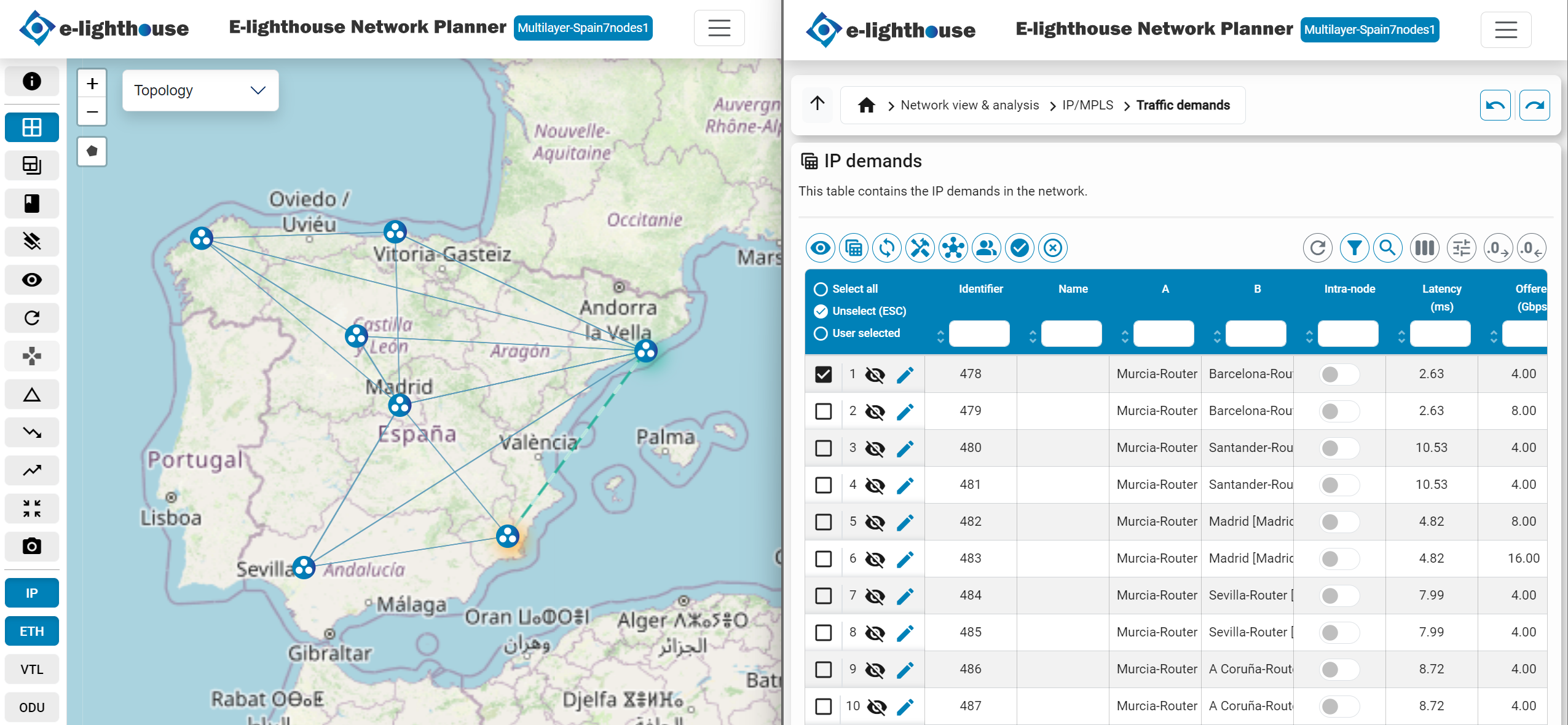
- Topology window: the visual workspace for placing, selecting, connecting, and inspecting elements on the canvas
- Control window: the detailed workspace for tables, filters, dashboards, and deeper inspection
When To Use Each Window
- Use the Topology window when you need spatial context, connectivity, or a quick visual understanding.
- Use the Control window when you need filtering, detailed properties, reports, or bulk table work.
Recommended Next Step
If this is your first time in ENP, continue with Topology window or go back to Understand the interface.